


How to Claim Your Account
Using Microsoft Self-Service Password Reset (SSPR) Audience: Chicago State University students, faculty, staff, and authorized users Portal: https://passwordreset.microsoftonline.com Support: CSU Helpdesk | bhelp@csu.edu| 773-995-3963
Purpose - This guide explains how Chicago State University users can:
- Claim their CSU account
- Reset a forgotten password
Password Reset / Account Claim Steps
Step 1: Go to the Microsft Password reset Portal.
Open a web browser and go to: https://passwordreset.microsoftonline.com/
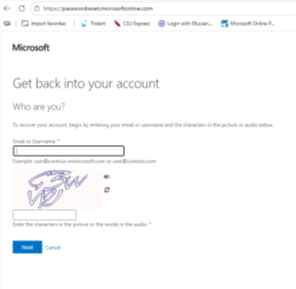
- Enter your CSU email address or username
- Complete the characters (CAPTCHA) shown on the screen
- Select Next
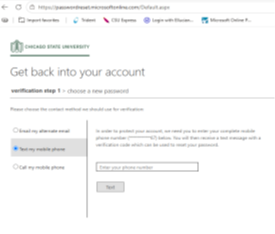
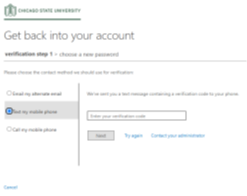
Step 2: Verify Your Identity
Choose a verificatin method (based on what you have registered):
- Text message (SMS)
- Phone call
- Microsoft Authenticator app
Follow the prompts to receive and enter your verification code.
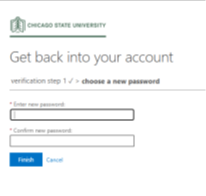
Step 3: Create a New Password
Enter a new password that meets CSU requirements:
Password guidelines typically include:
- At least 8 - 12 characters
- Mix of uppercase and lowercase letters
- At least one number
- At least one special character
Comfirm the new password and select Finish.
Step 4: Sign In with Your new Password
Return to your CSU services (email, portal, Team, etc.) and log in using your new
password.
If Your Account is Locked
Follow the same steps above. Once your identity is verified and password is reset,
your account will be automatically unlocked.
Security Remindere: Do not sent your current password, new password, or verification codes through email,
chat, text message, or voicemail.
To claim your account, reset password please Click here
|
New IT Help Center
ITD has upgraded its Help Desk to allow users to submit and track their tickets online/remotely.
To access the new IT Help Center
- Open any browser and go to Zendesk.
- Sign in using your CSU email and click the Next button.
- Enter your password and click the Sign In button.

- To reduce the number of times you sign in, click Yes.

You can click the email, desktop, and general buttons for additional assistance in
those areas.
- To submit a ticket to the Help Desk, click the ‘Submit a request’ link in the upper
right corner, next to your name.

- In the 'Please chosse your issue below' box, select Chicago State Request Form.
- Type a short note about the problem you are experiencing in the Subject box, i.e.,
telephone, email, etc.
- Find your specific issue in the Issue Type field.
- If you saved pictures of the error message as a file, drop and drag the file in the
attachments box.
- Click the Submit button.

Once the Help Desk receives your ticket, they will assign it ot a technician to assist
you.
- You can check on the status of your ticket by logging in to the Help Center and clicking
the arrow next to your name in the upper right corner. Then select ‘Requests’.
- Click on the link for your ticket for further details.
- If you want to send a note to the technician, then you can type your note in the 'Add
to conversation box.' And click the Submit button.

|
|
All Loaner Laptop requests and questions need to be directed to helpdesk@csu.edu.
Students that are willing to request a loaner laptop or request an extension should
send an email with their CSU ID# and class schedule attached.
|
- Account Recovery
- Basic Network Reset
- Hardware & Software Support
- ID Cards Issue
- Loaner Laptops
- Password Reset
- Software installation
|
|
For Zoom Webinar set up, training & technical assistance email helpdesk@csu.edu in format below:
- Event Name
- Panelists (Name and email)
- Date & Duration
- Event Options:
- Custom registration page for attendees (Default asks for first name, last name & email)
- Feature image, logo, branding the registration page
- Recording, video editing, playback
- Handouts or multimedia played during the webinar
- Polls or surveys (to engage your audience better)
|
|
For account creation, access issues email webinar@csu.edu.
Zoom
(Information Coming)
For account creation, access issues and training email to helpdesk@csu.edu
|